> ## Documentation Index
> Fetch the complete documentation index at: https://docs.fabi.ai/llms.txt
> Use this file to discover all available pages before exploring further.
# User management
> Managing users: Inviting, removing, roles.
# Inviting users
To invite users from your organization to your account, you can either:
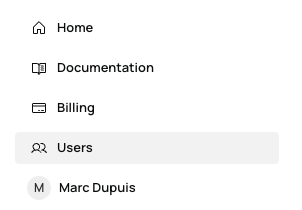
1. Go to our User management page by navigating to it from the left hand menu and clicking on **Users**
2. Sharing a Fabi.ai link with them and letting them self-provisioning with their corporate email address
Note that if they create their account on their own, if you're a Fabi.ai paying customer, new users will be defaulted to **Viewers**. You can change their role once they've onboarded. Alternatively, if you invite a user through the Fabi.ai interface, you can specify their role before they log in.
 **Note on SCIM**: If you're on our Enterprise plan and you have SCIM provisioning configured, user creation is managed by your SCIM provider.
# Changing user roles
A user can be in one of three roles:
1. **Admin**: Admins have complete Fabi.ai access. They can build and publish dashboards and workflows and manage users, billing and other organization-wide configurations.
2. **Builder**: Builders can create, publish and schedule Dashboards & data apps and workflows. Great for data analysts, data scientists, data engineer, product managers and anyone else who regularly builds dashboards.
3. **Viewer**: Viewers cannot create new Smartbooks or workflows. This role is great for users who only need to view published dashboards and workflows.
**Note on SCIM**: If you're on our Enterprise plan and you have SCIM provisioning configured, user creation is managed by your SCIM provider.
# Changing user roles
A user can be in one of three roles:
1. **Admin**: Admins have complete Fabi.ai access. They can build and publish dashboards and workflows and manage users, billing and other organization-wide configurations.
2. **Builder**: Builders can create, publish and schedule Dashboards & data apps and workflows. Great for data analysts, data scientists, data engineer, product managers and anyone else who regularly builds dashboards.
3. **Viewer**: Viewers cannot create new Smartbooks or workflows. This role is great for users who only need to view published dashboards and workflows.