> ## Documentation Index
> Fetch the complete documentation index at: https://docs.fabi.ai/llms.txt
> Use this file to discover all available pages before exploring further.
# Git version control
> Save your code and collaborate with your peers
# Overview
Version control is critical when working with complex analyses and workflows, especially when collaborating with your peers. Fabi offers version control connectors to help you save, share and update your code in just a few clicks.
# Connecting your GitHub account
We currently offer a GitHub integration. If you would like us to integrate another version control platform, please reach out to [support@fabi.ai](mailto:support@fabi.ai).
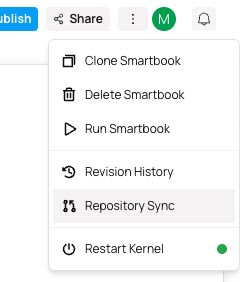
From any Smartbook or workflow, click on the overflow menu in the header, and select `Repository Sync`
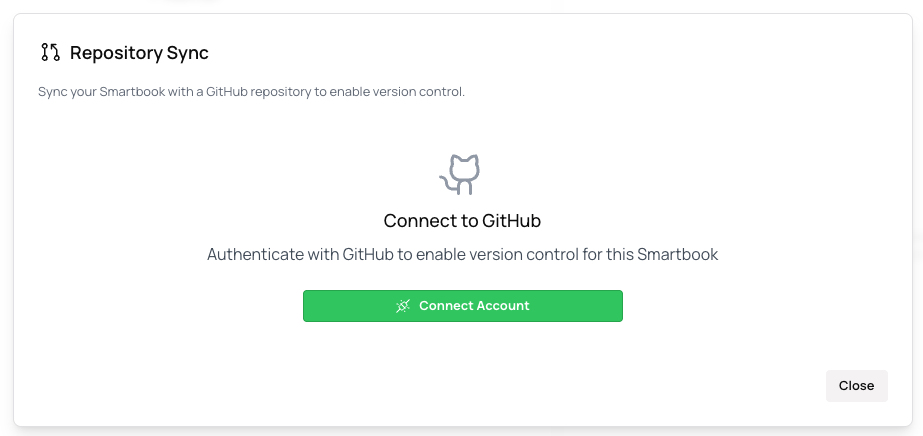
 You'll be prompted to authorize GitHub. Once completed, you'll be ready to sync your Smartbook with GitHub.
 # Pushing your Smartbooks and workflows to GitHub
## Committing changes
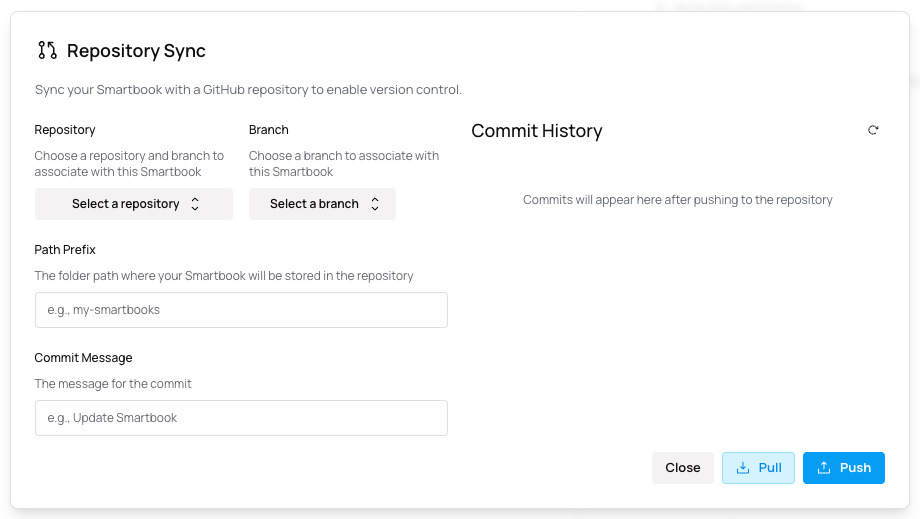
Once you've connect Fabi to GitHub, selecting `Repository Sync` will open up a modal. You'll be prompted to provide:
* Repository name
* Branch (you can also create a new branch from here)
* Path prefix
# Pushing your Smartbooks and workflows to GitHub
## Committing changes
Once you've connect Fabi to GitHub, selecting `Repository Sync` will open up a modal. You'll be prompted to provide:
* Repository name
* Branch (you can also create a new branch from here)
* Path prefix
 The Smartbook will be pushed to GitHub as a YAML file in a folder marked by the unique Smartbook ID. You can think of Smartbooks as projects, these may contain more than just the single main file.
## Automatic commits
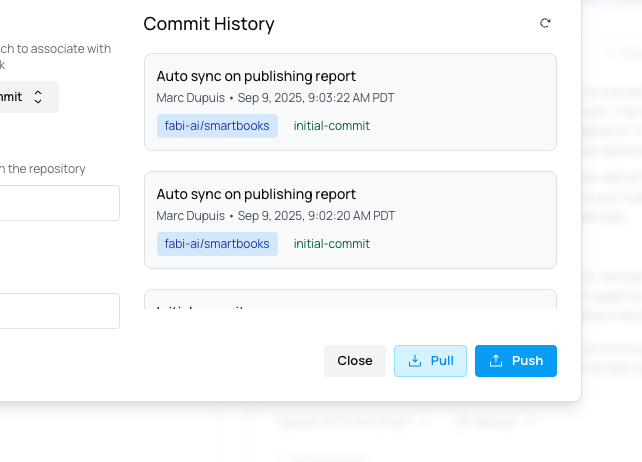
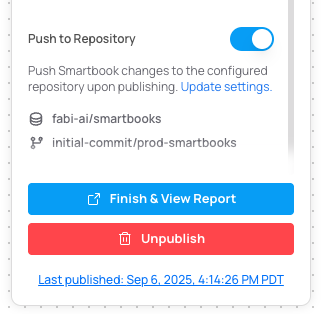
If you're publishing your Smartbook or workflow, you can configure your settings to automatically commit updates on publish. This is a convenient feature if you're quickly iterating on a data app or workflow and want to keep the source code up to date.
The Smartbook will be pushed to GitHub as a YAML file in a folder marked by the unique Smartbook ID. You can think of Smartbooks as projects, these may contain more than just the single main file.
## Automatic commits
If you're publishing your Smartbook or workflow, you can configure your settings to automatically commit updates on publish. This is a convenient feature if you're quickly iterating on a data app or workflow and want to keep the source code up to date.
 ## Pulling changes
To pull data from your repository, simply specify the repositoy, branch and prefix that you want to pull from. In most cases, if you've pushed your code from the Smartbook, most of this information should already be populated.
## Pulling changes
To pull data from your repository, simply specify the repositoy, branch and prefix that you want to pull from. In most cases, if you've pushed your code from the Smartbook, most of this information should already be populated.