> ## Documentation Index
> Fetch the complete documentation index at: https://docs.fabi.ai/llms.txt
> Use this file to discover all available pages before exploring further.
# Analyst Agent
> Your AI-powered data analyst that understands all your data and helps you build analyses faster.
Analyst Agent is your AI-powered data analyst that lives alongside your work in Fabi. It can talk to all your connected data sources, write SQL and Python code, create visualizations, and help you build analyses—all through natural language conversation.
 # Analyst Agent in Smartbooks
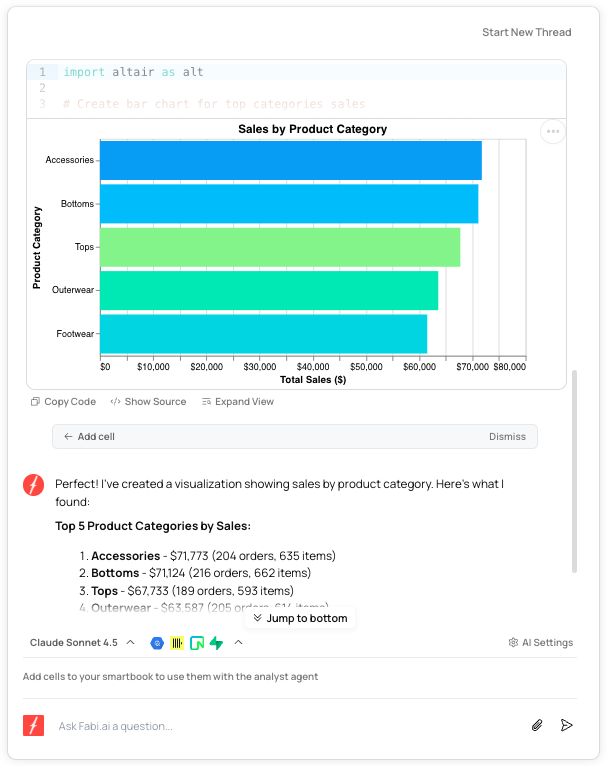
When you're working in a Smartbook, Analyst Agent appears in the right-hand panel as your AI-powered data analyst. It has access to all your connected data sources and can help you build analyses faster by generating code, creating visualizations, and suggesting changes to your Smartbook.
## How it works
Analyst Agent is designed to accelerate your data analysis workflow. Simply ask questions in plain English, and the AI will:
* **Query all your data sources**: Analyst Agent has access to all your connected databases, warehouses, and uploaded files
* **Generate SQL or Python code**: Automatically writes optimized queries and analysis code based on your request
* **Create visualizations**: Generates charts, tables, and other AI data visualizations to help you understand your data
* **Suggest changes to your Smartbook**: Proposes adding new cells, updating existing code, or creating new data artifacts
The AI understands your data schema, relationships between tables, and the context of your existing analysis—making it feel like working with an expert data analyst who knows your entire data landscape.
## Asking questions
Analyst Agent brings **conversational BI** to your data—simply type your question or request in natural language:
* "What are our top 10 customers by revenue this quarter?"
* "Create a cohort analysis showing user retention over the last 6 months"
* "Show me a breakdown of sales by region and product category"
* "Build a funnel chart showing conversion from signup to purchase"
Use the @ symbol to reference specific data elements in your questions. For example: "Use @sales\_data to calculate monthly growth rate"
## Reviewing and saving suggestions
When Analyst Agent responds, you'll see:
1. **The answer or visualization** - Charts, tables, or insights based on your question
2. **The underlying code** - SQL or Python that generated the result
3. **Save option** - Add the result to your Smartbook with one click
# Analyst Agent in Smartbooks
When you're working in a Smartbook, Analyst Agent appears in the right-hand panel as your AI-powered data analyst. It has access to all your connected data sources and can help you build analyses faster by generating code, creating visualizations, and suggesting changes to your Smartbook.
## How it works
Analyst Agent is designed to accelerate your data analysis workflow. Simply ask questions in plain English, and the AI will:
* **Query all your data sources**: Analyst Agent has access to all your connected databases, warehouses, and uploaded files
* **Generate SQL or Python code**: Automatically writes optimized queries and analysis code based on your request
* **Create visualizations**: Generates charts, tables, and other AI data visualizations to help you understand your data
* **Suggest changes to your Smartbook**: Proposes adding new cells, updating existing code, or creating new data artifacts
The AI understands your data schema, relationships between tables, and the context of your existing analysis—making it feel like working with an expert data analyst who knows your entire data landscape.
## Asking questions
Analyst Agent brings **conversational BI** to your data—simply type your question or request in natural language:
* "What are our top 10 customers by revenue this quarter?"
* "Create a cohort analysis showing user retention over the last 6 months"
* "Show me a breakdown of sales by region and product category"
* "Build a funnel chart showing conversion from signup to purchase"
Use the @ symbol to reference specific data elements in your questions. For example: "Use @sales\_data to calculate monthly growth rate"
## Reviewing and saving suggestions
When Analyst Agent responds, you'll see:
1. **The answer or visualization** - Charts, tables, or insights based on your question
2. **The underlying code** - SQL or Python that generated the result
3. **Save option** - Add the result to your Smartbook with one click
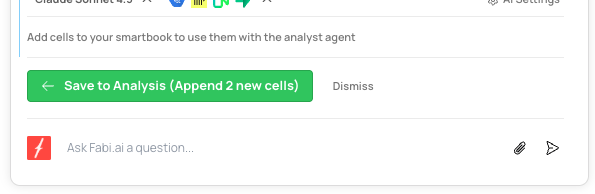 You can:
* **Save** the suggestion to add it as a new cell in your Smartbook
* **Modify** the code before saving if you want to adjust the approach
* **Ask follow-ups** to refine the analysis
* **Revert** any saved changes if you change your mind
## Configuring Analyst Agent
You can customize how Analyst Agent behaves to match your team's workflow and requirements.
To configure the AI:
1. Open up any Smartbook
2. Click on "AI Settings" above the AI chat input
3. Adjust settings like model selection, behavior, and any personal preferences
For detailed configuration options, see our [Personal AI Configuration](/advanced_features_and_dev_tools/personal_ai_configuration) guide.
***
# Embed Analyst Agent in dashboards and data apps
Beyond helping you build analyses, you can also embed Analyst Agent directly into published dashboards and data apps to provide [self-service analytics](https://www.fabi.ai/) to your stakeholders.
## How embedded Analyst Agent works
When you publish a dashboard with Analyst Agent enabled, your stakeholders can ask questions about the data in that specific dashboard—without needing to write SQL or Python themselves.
Key characteristics of embedded Analyst Agent:
* **Works with curated data**: The AI only accesses the specific DataFrames you've included in the dashboard
* **Stays in scope**: Won't answer questions about data it doesn't have access to
* **Always uses fresh data**: If the dashboard is scheduled to refresh, the AI uses the latest data
* **Maintains governance**: You control exactly what data the AI can access
This modular approach makes it safer and easier to provide AI-powered analytics to non-technical stakeholders.
## Setting up embedded Analyst Agent
When building a dashboard:
1. Go to **Dashboard Builder** in the top navigation
2. [Configure your dashboard](/analysis_and_reporting/reporting_and_collaboration) with the visualizations you want to share
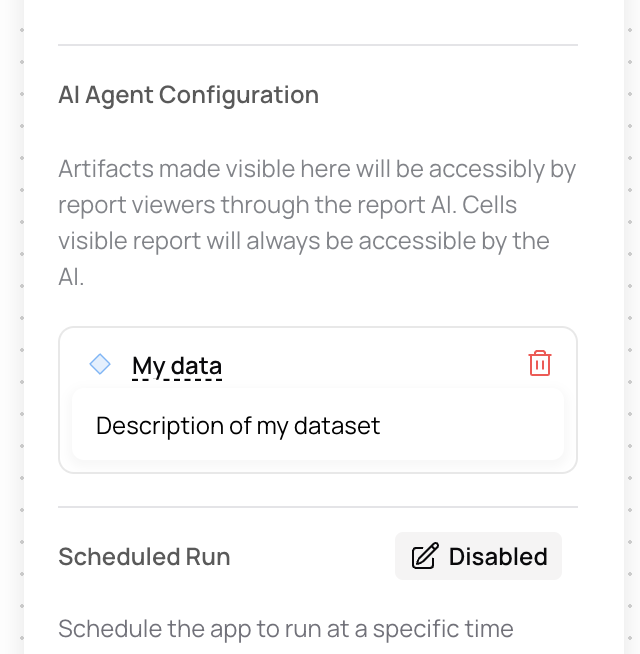
3. In the right-hand configuration panel, select which DataFrames the embedded AI should access
4. Add clear labels and descriptions for each DataFrame—these help the AI understand the data and are shown to users
5. [Schedule updates](/analysis_and_reporting/schedule_reports_and_workflows) if needed
6. Publish your dashboard
You can:
* **Save** the suggestion to add it as a new cell in your Smartbook
* **Modify** the code before saving if you want to adjust the approach
* **Ask follow-ups** to refine the analysis
* **Revert** any saved changes if you change your mind
## Configuring Analyst Agent
You can customize how Analyst Agent behaves to match your team's workflow and requirements.
To configure the AI:
1. Open up any Smartbook
2. Click on "AI Settings" above the AI chat input
3. Adjust settings like model selection, behavior, and any personal preferences
For detailed configuration options, see our [Personal AI Configuration](/advanced_features_and_dev_tools/personal_ai_configuration) guide.
***
# Embed Analyst Agent in dashboards and data apps
Beyond helping you build analyses, you can also embed Analyst Agent directly into published dashboards and data apps to provide [self-service analytics](https://www.fabi.ai/) to your stakeholders.
## How embedded Analyst Agent works
When you publish a dashboard with Analyst Agent enabled, your stakeholders can ask questions about the data in that specific dashboard—without needing to write SQL or Python themselves.
Key characteristics of embedded Analyst Agent:
* **Works with curated data**: The AI only accesses the specific DataFrames you've included in the dashboard
* **Stays in scope**: Won't answer questions about data it doesn't have access to
* **Always uses fresh data**: If the dashboard is scheduled to refresh, the AI uses the latest data
* **Maintains governance**: You control exactly what data the AI can access
This modular approach makes it safer and easier to provide AI-powered analytics to non-technical stakeholders.
## Setting up embedded Analyst Agent
When building a dashboard:
1. Go to **Dashboard Builder** in the top navigation
2. [Configure your dashboard](/analysis_and_reporting/reporting_and_collaboration) with the visualizations you want to share
3. In the right-hand configuration panel, select which DataFrames the embedded AI should access
4. Add clear labels and descriptions for each DataFrame—these help the AI understand the data and are shown to users
5. [Schedule updates](/analysis_and_reporting/schedule_reports_and_workflows) if needed
6. Publish your dashboard
 ## Best practices for embedded AI
To maximize accuracy when embedding Analyst Agent in dashboards:
* **Don't aggregate unnecessarily**: Query data at the right level of granularity for the questions users might ask
* **Select relevant fields only**: Avoid `SELECT *` - only include columns the AI needs
* **Clean your data**: Filter out bad records, null values, or outliers
* **Use clear naming**: Rename fields to be descriptive (e.g., `amount` → `opportunity_amount_usd`)
* **Add detailed descriptions**: The DataFrame descriptions guide both the AI and your users
## Use cases for embedded Analyst Agent
Create specialized agents for different teams:
* **Marketing agent**: Access only to campaign performance and attribution data
* **Product agent**: Limited to product usage, feature adoption, and engagement metrics
* **Sales performance dashboard**: Tracks pipeline, opportunities, and revenue data to give sales teams real-time visibility
* **Customer success agent**: Scoped to account health, support tickets, and NPS data
This approach makes AI-powered analytics faster, safer, and more focused than trying to build one agent that answers every business question.
***
# FAQ
Yes! Every change suggested by Analyst Agent can be reverted at any point. You have full version control over your Smartbook.
In Smartbooks, Analyst Agent can access all your connected data sources. In published dashboards, it only accesses the specific DataFrames you've configured for that dashboard.
Embedded Analyst Agent always uses the latest data available in the dashboard. If you've scheduled the dashboard to refresh, or if users update filters/inputs, the AI uses the current data.
Analyst Agent will only answer questions using data it has access to. If it doesn't have the necessary data, it will let the user know rather than guessing or making up information.
Yes! Every response includes the SQL or Python code that generated it. You can review, modify, or learn from the code.
This depends on your organization's configuration. You may be using OpenAI, Anthropic, or a private LLM if you're an enterprise customer. The active model is displayed in the AI chat interface.
Yes! You can configure various aspects of the AI through your workspace settings. See our [Personal AI Configuration](/advanced_features_and_dev_tools/personal_ai_configuration) guide for details.
Traditional BI tools require you to manually build queries and reports. Fabi brings conversational BI and generative BI capabilities to your data—you simply ask questions in plain English and the AI handles the analysis, code generation, and visualization. This makes Fabi a true self-service analytics platform where both technical and non-technical users can get answers from their data quickly.
## Best practices for embedded AI
To maximize accuracy when embedding Analyst Agent in dashboards:
* **Don't aggregate unnecessarily**: Query data at the right level of granularity for the questions users might ask
* **Select relevant fields only**: Avoid `SELECT *` - only include columns the AI needs
* **Clean your data**: Filter out bad records, null values, or outliers
* **Use clear naming**: Rename fields to be descriptive (e.g., `amount` → `opportunity_amount_usd`)
* **Add detailed descriptions**: The DataFrame descriptions guide both the AI and your users
## Use cases for embedded Analyst Agent
Create specialized agents for different teams:
* **Marketing agent**: Access only to campaign performance and attribution data
* **Product agent**: Limited to product usage, feature adoption, and engagement metrics
* **Sales performance dashboard**: Tracks pipeline, opportunities, and revenue data to give sales teams real-time visibility
* **Customer success agent**: Scoped to account health, support tickets, and NPS data
This approach makes AI-powered analytics faster, safer, and more focused than trying to build one agent that answers every business question.
***
# FAQ
Yes! Every change suggested by Analyst Agent can be reverted at any point. You have full version control over your Smartbook.
In Smartbooks, Analyst Agent can access all your connected data sources. In published dashboards, it only accesses the specific DataFrames you've configured for that dashboard.
Embedded Analyst Agent always uses the latest data available in the dashboard. If you've scheduled the dashboard to refresh, or if users update filters/inputs, the AI uses the current data.
Analyst Agent will only answer questions using data it has access to. If it doesn't have the necessary data, it will let the user know rather than guessing or making up information.
Yes! Every response includes the SQL or Python code that generated it. You can review, modify, or learn from the code.
This depends on your organization's configuration. You may be using OpenAI, Anthropic, or a private LLM if you're an enterprise customer. The active model is displayed in the AI chat interface.
Yes! You can configure various aspects of the AI through your workspace settings. See our [Personal AI Configuration](/advanced_features_and_dev_tools/personal_ai_configuration) guide for details.
Traditional BI tools require you to manually build queries and reports. Fabi brings conversational BI and generative BI capabilities to your data—you simply ask questions in plain English and the AI handles the analysis, code generation, and visualization. This makes Fabi a true self-service analytics platform where both technical and non-technical users can get answers from their data quickly.