> ## Documentation Index
> Fetch the complete documentation index at: https://docs.fabi.ai/llms.txt
> Use this file to discover all available pages before exploring further.
# Exporting Data
> Export your tabular data as CSV files or push to Google Sheets
# Overview
Fabi.ai provides multiple ways to export your data for sharing, analysis, or integration with other tools. Whether you need a simple CSV download or want to push data directly to Google Sheets, we've got you covered.
# Exporting as CSV
You can export any tabular data from your Smartbooks as a CSV file. This is perfect for:
* Sharing data with stakeholders who prefer spreadsheet formats
* Importing data into other analysis tools
* Creating backups of your analysis results
* Providing data for external reporting systems
## How to export
1. **From SQL results**: After running a SQL query, click the download icon in the results panel
2. **From Python DataFrames**: Use the export functionality in any DataFrame output
3. **From Dashboards & data apps**: Export data directly from published dashboards
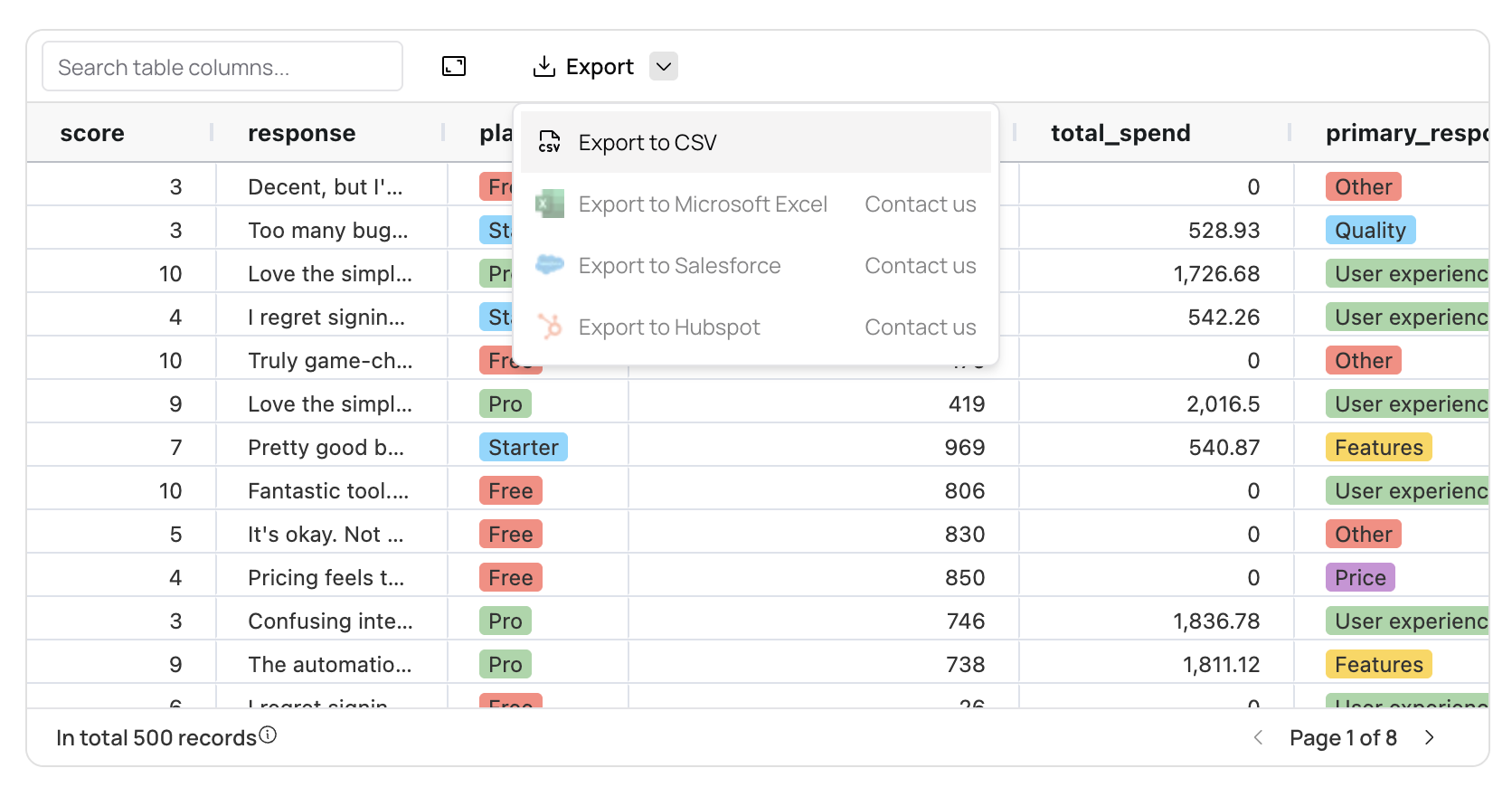 The exported CSV file will include all the data from your query or DataFrame, maintaining the column structure and data types.
# Pushing to Google Sheets
For more advanced data sharing and collaboration, you can push your data directly to Google Sheets. This is especially useful for:
* Regular reporting to stakeholders
* Creating executive dashboards
* Automating data updates in existing workflows
* Sharing data with non-technical team members
See our dedicated [Push to Google Sheets](/workflow_automation/push_to_google_sheets) documentation for step-by-step setup and best practices.
The exported CSV file will include all the data from your query or DataFrame, maintaining the column structure and data types.
# Pushing to Google Sheets
For more advanced data sharing and collaboration, you can push your data directly to Google Sheets. This is especially useful for:
* Regular reporting to stakeholders
* Creating executive dashboards
* Automating data updates in existing workflows
* Sharing data with non-technical team members
See our dedicated [Push to Google Sheets](/workflow_automation/push_to_google_sheets) documentation for step-by-step setup and best practices.