> ## Documentation Index
> Fetch the complete documentation index at: https://docs.fabi.ai/llms.txt
> Use this file to discover all available pages before exploring further.
# Filters and inputs
> Create interactive filters and inputs for self-service analytics—let stakeholders explore data and run ad hoc analysis on their own.
# Creating filters & inputs
Once you’ve built some insights that you’d like to share, the next step is to make these interactive so your stakeholders can explore the insights on their own. This is the foundation of **self-service analytics**—giving stakeholders the ability to do **ad hoc analysis** without needing to ask a data analyst every time.
To do this, we’ll need to create filters and inputs.
You can create the following types of filters and inputs:
* Date and date ranges
* Dropdown lists
* Numbers
* Boolean (True/False)
* Text
## Filter and input types and variables
Fabi.ai offers a wide variety of configuration options so that you can create virtually any type of dashboard or data app.
* Dates
* You can can create a single date picker or a date range
* Dropdown lists
* You can choose if you want the values in the list to be manually created or dynamically generated from a list of distinct values in a table (DataFrame) filtered\_customers
* You can choose if you want to let the user select a single value at a time or multiple values. Note that which one you select requires a different treatment in SQL and Python. Single values are treated as strings whereas multi-select values are treated as lists
* Numbers
* You can create a single number input or a range selector
* Boolean
* Text
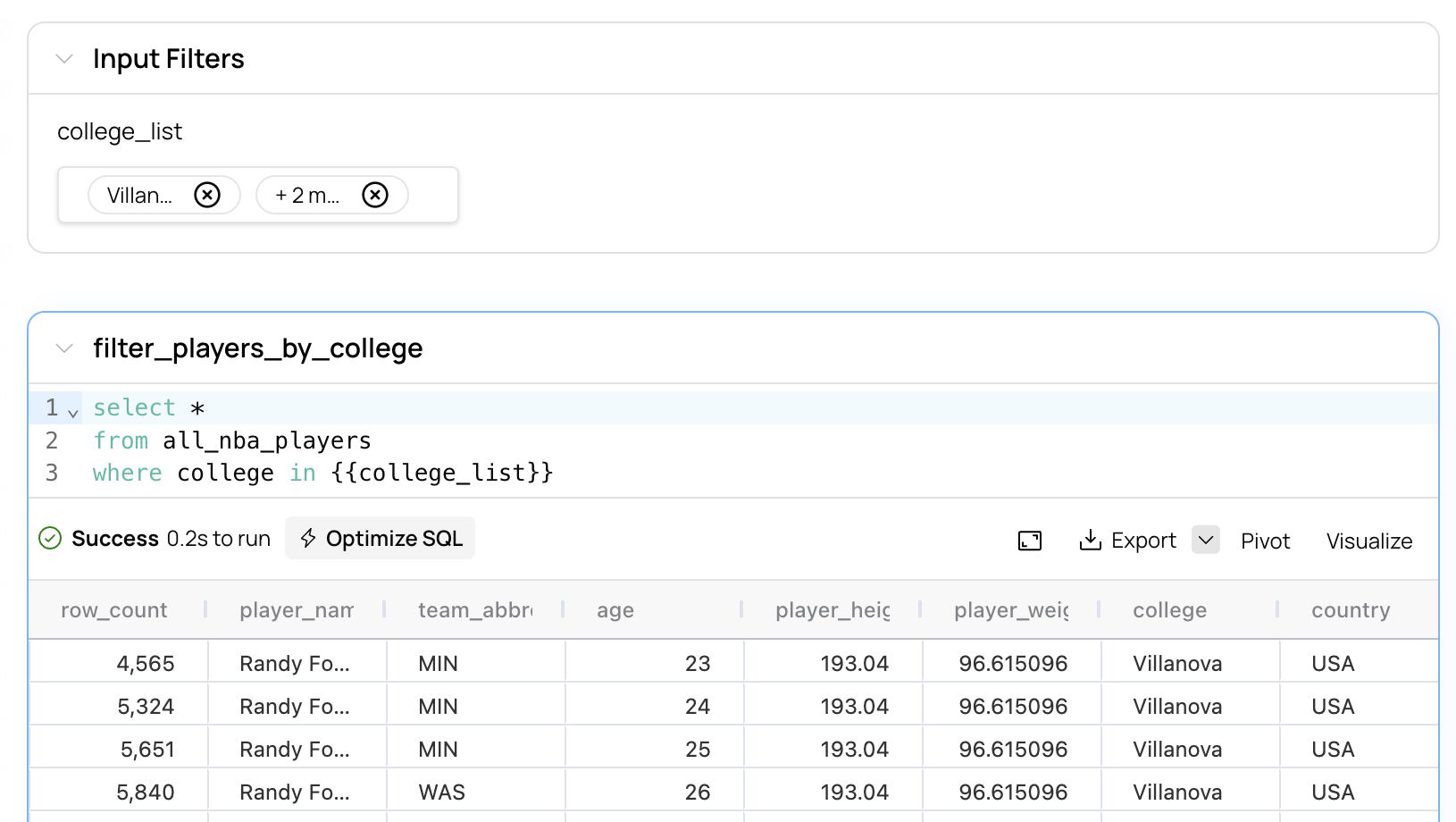 ## Creating filters and inputs in SQL
To add a filter or input to a SQL query, find the variable that you want to parameterize, and replace it with `{{your_variable_name}}`.
For example:
```sql theme={null}
select *
from customers
where age > {{customer_age}}
```
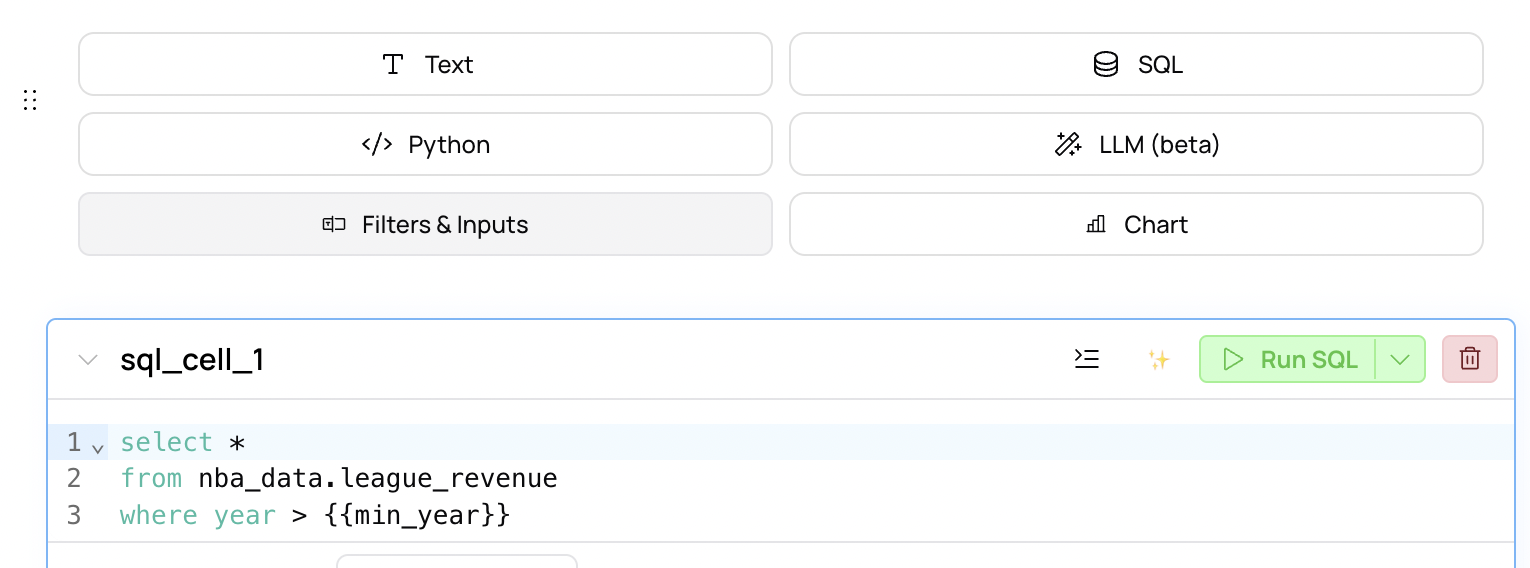
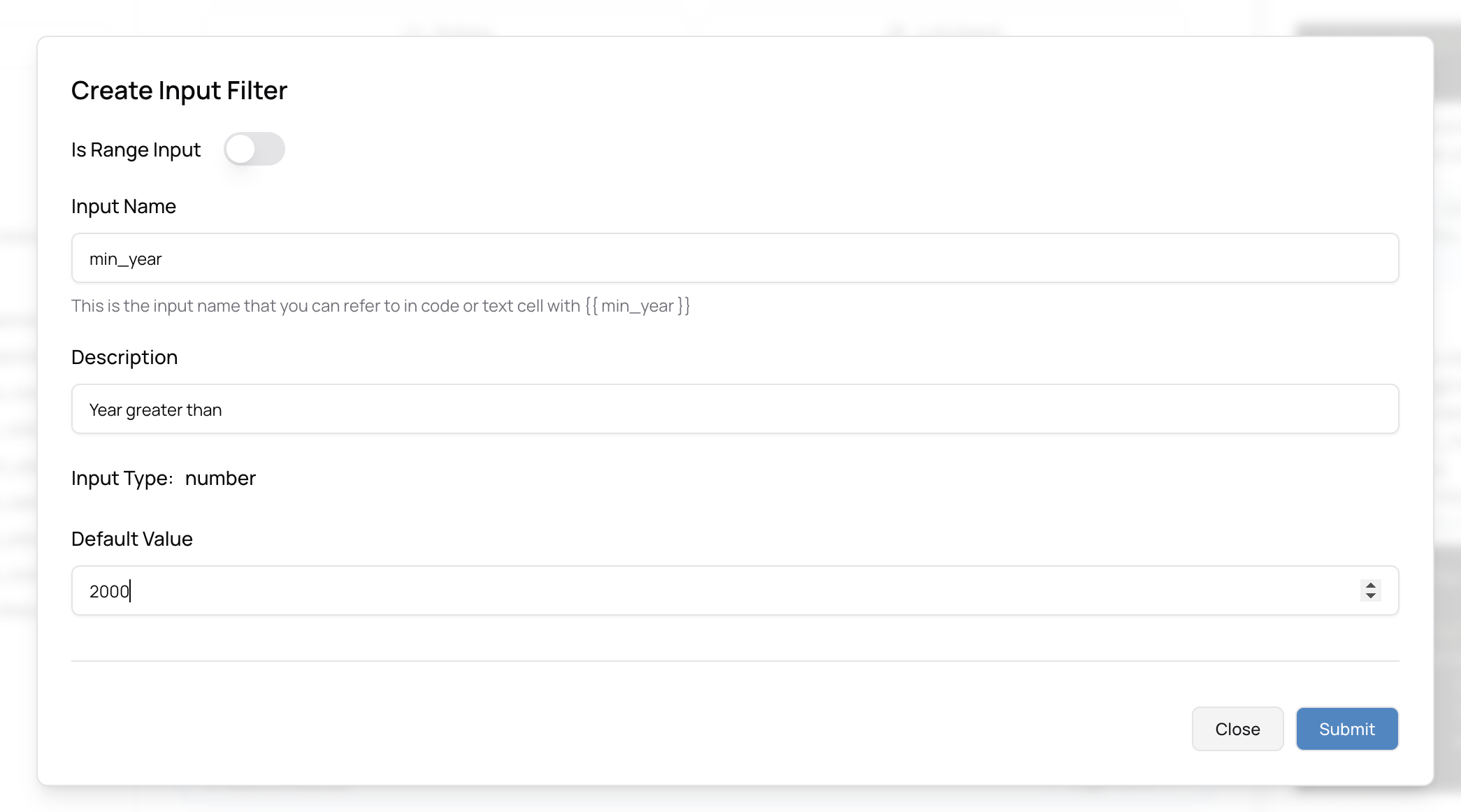
Next, above the SQL cell, select **Insert a new cell** then **Filters & Inputs**. Select the type and enter the required information. Once you’re done, press **Submit**.
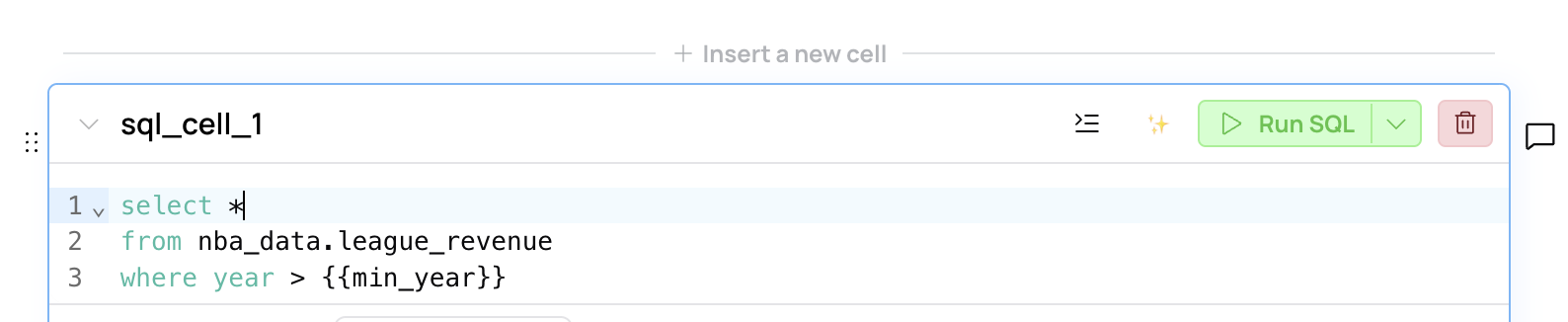
Step 1: Create a variable
## Creating filters and inputs in SQL
To add a filter or input to a SQL query, find the variable that you want to parameterize, and replace it with `{{your_variable_name}}`.
For example:
```sql theme={null}
select *
from customers
where age > {{customer_age}}
```
Next, above the SQL cell, select **Insert a new cell** then **Filters & Inputs**. Select the type and enter the required information. Once you’re done, press **Submit**.
Step 1: Create a variable
 Step 2: Create a filter or input
 Step 3: Configure the filter or input
 Note: You can also insert these parameters in text cells
```
This dashboard shows a list of customers where age > {{customer_age}}.
```
## Creating filters and inputs in Python
You can create filters and inputs in Python cells the exact same way that you would for SQL, except that you can’t just use the variable directly, without the `{{}}`.
For example:
```python theme={null}
filtered_customers = customers[customers['age'] > customer_age]
```
Note: You can also insert these parameters in text cells
```
This dashboard shows a list of customers where age > {{customer_age}}.
```
## Creating filters and inputs in Python
You can create filters and inputs in Python cells the exact same way that you would for SQL, except that you can’t just use the variable directly, without the `{{}}`.
For example:
```python theme={null}
filtered_customers = customers[customers['age'] > customer_age]
```