> ## Documentation Index
> Fetch the complete documentation index at: https://docs.fabi.ai/llms.txt
> Use this file to discover all available pages before exploring further.
# Pull from Airtable
> Use AI, SQL and Python to explore your Airtable data
# Overview
The Airtable input cell allows you to fetch data from your Airtable bases and use it in your workflows, analyses, and Airtable dashboards. Airtable views are automatically stored at Python DataFrames for easy use with AI and Python or SQL.
## Configuration
### Creating an Airtable access token
In Airtable, create a new API access token from your [Builder Hub](https://airtable.com/create/tokens).
Make sure this token as `data.records:read` access so that it can read your data from Airtable.
### Ingesting Airtable views into Fabi.ai
Once you have your Airtable access token:
1. In a Smartbook, create a new Airtable cell
2. Copy/paste the view URL from Airtable in the **View URL** input (eg. "[https://airtable.com/app1lxz7](https://airtable.com/app1lxz7)")
3. Add you access token to the **Personal Access Token** input (**Important**: We strongly recommend using our [Secret Manager](../advanced_features_and_dev_tools/secret_manager) for better security)
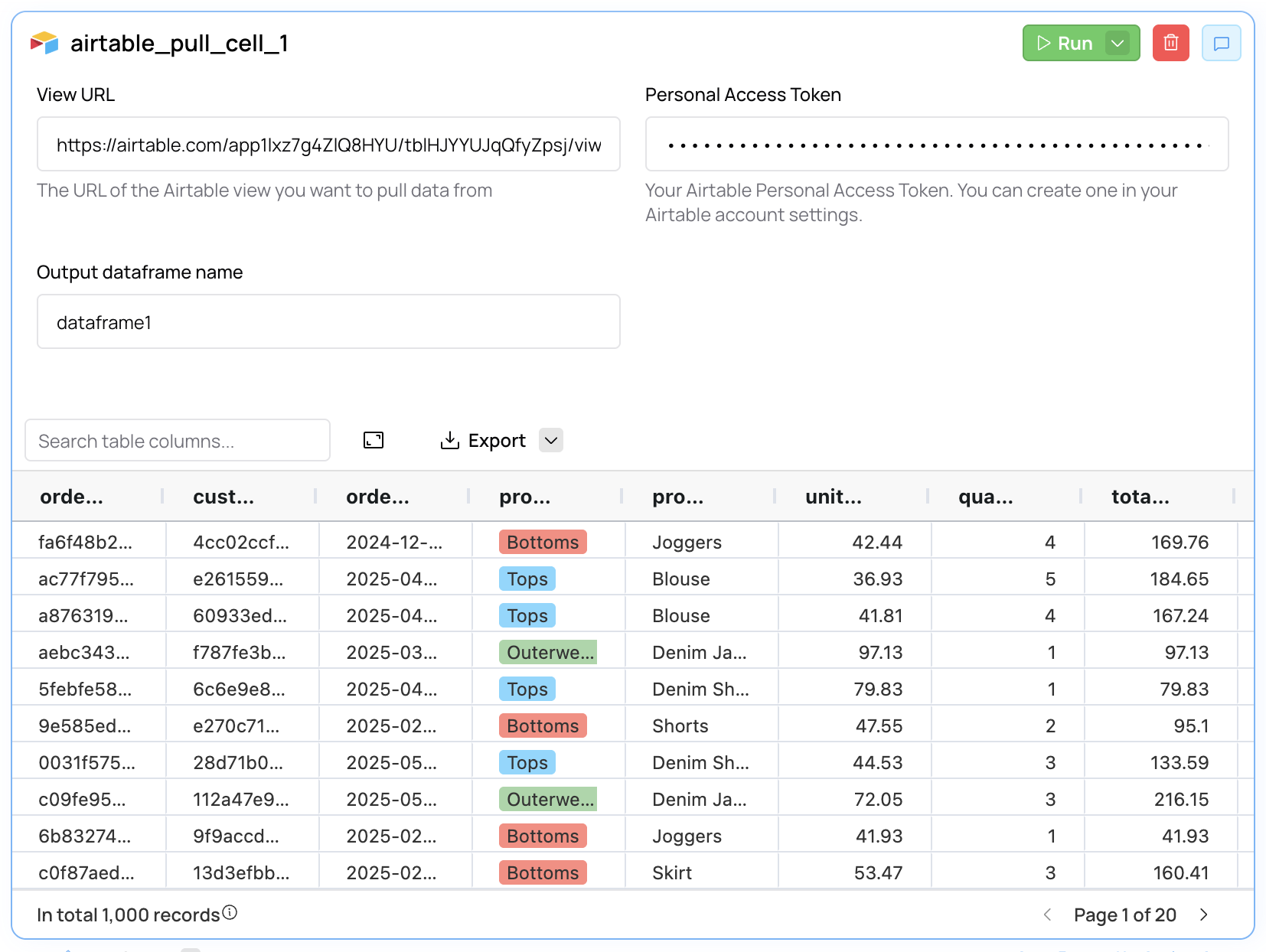 As with other input cells, Fabi.ai automatically saves your data as a Python DataFrame to make it ready to use for the AI or in any other cell.