> ## Documentation Index
> Fetch the complete documentation index at: https://docs.fabi.ai/llms.txt
> Use this file to discover all available pages before exploring further.
# Pull from Google Sheets
> Pulling data from Google Sheets into Fabi.ai
# Overview
Our **Pull from Google Sheets** cell let's you pull data from a Google Sheets and automatically save it as a DataFrame.
Once you've pulled your data in, you can easily analyze it using Python and AI and build dashboards and workflows with it.
 # Configuring your Google Sheets pull
Steps to set up your first pull:
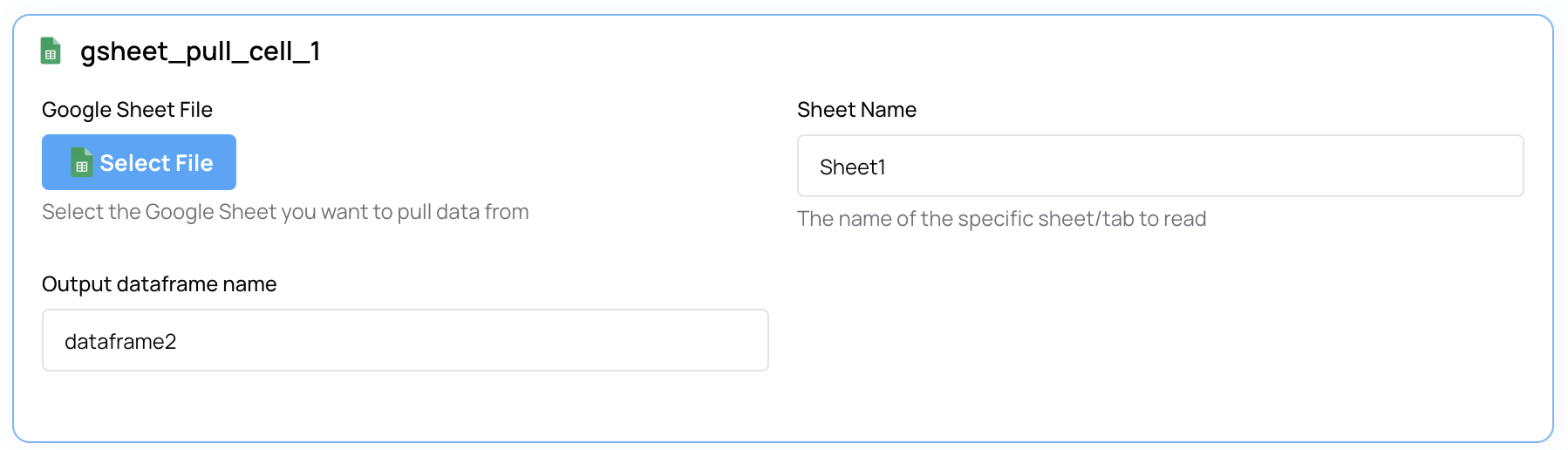
1. In Smartbook or workflow, add a new cell and select **Google Sheet Pull**
2. Connect your Google Workspace account
3. Click on **Select File** and search for the sheet you want to pull data from
4. Run the cell
**Note**: We offer two cells to pull from Google Sheets: one for private sheets and one for public sheets.
Your sheet will automatically be saved as a new Python DataFrame which you can then use in subsequent cells.
# Configuring your Google Sheets pull
Steps to set up your first pull:
1. In Smartbook or workflow, add a new cell and select **Google Sheet Pull**
2. Connect your Google Workspace account
3. Click on **Select File** and search for the sheet you want to pull data from
4. Run the cell
**Note**: We offer two cells to pull from Google Sheets: one for private sheets and one for public sheets.
Your sheet will automatically be saved as a new Python DataFrame which you can then use in subsequent cells.